I don’t know about you, but I’d save $100 rather than spending it on an official Xbox 360 wireless G adapter. I also know it’s possible to buy a Linksys WRT54GS and use it as a bridge, but your still spending money. If you have a computer that already has a wireless connection and that is close by your Xbox 360, you’re in luck. Using a Ethernet cable, you can attach your Xbox 360 to your computer, then share the internet connection via the wireless. Interested? Here’s how to go about it:
- Attach a Cat5E Ethernet cable to your PC to the Xbox 360.
- Turn on your Xbox 360. On the PC, enable the Wired LAN port. You should get a connection however windows will display a limited connection notification, which you don’t need to worry about now.
- On the Wireless Connection icon in Network Connections, Right-click and select properties >Advanced tab> select a tick in “Allow other network users to connect through this computers Internet Connection”> Select from the combo box the Wired Lan Connection, in my case “Local Area Connection”. Click OK. See screenshot for details.
- Back to your Xbox 360, Test Xbox Live in the networking settings options. You should now have successfully attached your Xbox 360 to the internet.
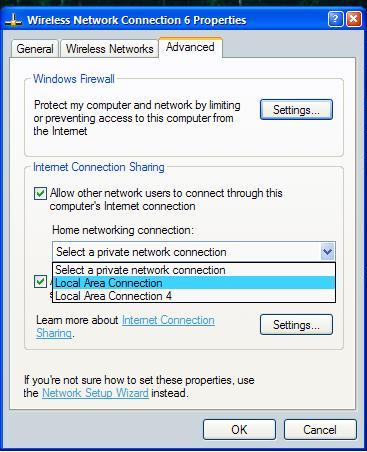
I haven’t tested any FPS (or any games) online over this connection as I don’t have a Gold Membership. Also, you will need to have your computer switched on to be able to use Xbox 360 online because the PC is the gateway. Still, not bad for free wireless for your Xbox 360!
If you enjoyed this post, make sure you subscribe to my RSS feed!


December 16th, 2008 at 10:34 pm
HOW DO I HOOK UP ONLINE
December 18th, 2008 at 1:01 am
I’m not sure what you mean Brandon. Follow the steps above to hook up your 360 to the internet via your PC. Other steps will be mentioned in the instructions that came with the console.
December 28th, 2008 at 12:24 am
i have a router/modem wit a wireless connection n it has a password which i kno. but evrey time i take the ethernet cable that is plugged to the back of the xbox and plug it into my router/modem n put in all the right settings and i test it and it always fails
December 28th, 2008 at 5:39 pm
Matt, Are you using a dynamic IP Address to connect your xbox 360 to your router? A firewall may also be blocking the communication ports. Have you tired the Xbox 360 connectivity wizard? Here’s the link:
http://support.xbox.com/support/en/us/xbox/ConnectivityWizard.aspx
December 29th, 2008 at 6:34 pm
when i tick the box to “Allow other network users to connect through this computers Internet Connection”, a little window pops up that says:
An error occurred while Internet Connection Sharing was being enabled.
Internet Connection Sharing cannot be enabled.
A LAN connection is already configured with the IP adress
that is required for automatic IP addressing.
What does this mean, and how do i make it so it can allow other network users to connect through the computers internet connection?
thanks.
January 1st, 2009 at 8:17 pm
Jeremy, try turning off the other computers first then enable Internet Connection Sharing. If it passes, turn on the other computers and see what happens.
January 2nd, 2009 at 1:44 am
What is the process on Vista (x64)? Because I’ve had to improvise a little, and all I managed to do was kick my laptop off the internet…
January 2nd, 2009 at 1:50 am
I fixed it! I was turning sharing on for the wrong network. I was sharing the LAN network, not the wireless, so it was using the 360’s network to override other networks. Or summat.
Anyhow, it works now! Sorry I wasted your time.
January 2nd, 2009 at 1:02 pm
Hi guys,
i’ve followed this tutorial ( however my pc doesn’t show the part:
‘ Select from the combo box the Wired Lan Connection, in my case “Local Area Connection”. Click OK. See screenshot for details. ‘
when i do the tes on the xbox it goes thro right up to xbox live but then fails. the message returned talks about a strict NAT network beign the cause. how do i solve this? i’ve got windows XP, on BT home hub internet
thanks
January 2nd, 2009 at 1:03 pm
sorry, scrub that, just restarted the xbox and it signed into live
thanks for the info tho, good work
January 3rd, 2009 at 9:44 pm
Thanks for the tip. Worked great the first time we tried it. However, after my grandson turned off his XBox 360, the next time he turned it on, it wouldn’t connect. We tried several things with no success. I finally used the Windows Network Setup Wizard and re-setup the wireless network and than added the “Allow other network users…” check box back in. We were then able to connect again. Any way to keep the connection even when the game system is turned off and back on?
Thanks a lot.
January 4th, 2009 at 6:49 pm
John J, when working correctly, the Xbox 360 should connect every time without further configuring. Is the Xbox 360 network settings set to automatic?
January 5th, 2009 at 8:31 pm
yes they are.
January 5th, 2009 at 10:56 pm
There is another method of connecting your Xbox 360 to your PC. It’s called a ‘bridge’. Here’s how:
1) Go to the ‘manage network connections’ area (but don’t plug in the ethernet cable yet!)
 Xbox live should be working at this point. Try to sign into live.
2) Hold down the ‘ctrl’ key and click on ‘wireless connection’ and then ‘local area connection’.
3) Both of these icons should now be highlighted. Right click over one of these icons and select ‘bridge connection’.
4) Wait 30 seconds. You should hopefully get a new icon ‘network bridge’.
5) Your laptop internet should still be working and the ‘local area connect’ symbol should still be ‘disconnected’. If not, give it a few minutes, then right click on the ‘wireless connection’, click ‘properties’ and then click ‘okay’. This should hopefully get everything working.
6) Plug the ethernet cable into your xbox 360 and laptop ethernet ports.
7) Turn your xbox on and leave it in dashboard. The xbox live connection may fail at this point. Try right clicking on the ‘local area connection’ then ‘properties’ then click ‘okay’.
May 12th, 2009 at 2:37 am
Hey i am happy with WP but evrey time i take the ethernet cable that is plugged to the back of the xbox and plug it into my router/modem n put in all the right settings and i test it and it always fails
May 12th, 2009 at 5:37 pm
Uhm…how do I do this on Windows Vista? I plug in the ethernet cable, go to Network and Sharing Center, Next to Motorola (name of wireless network) I click view staus, click the properties button that has a shield next to it, go to the sharing tab, check the box that says “Allow other network users to connect through this computer’s Internet Connection” and press O.K.
Then I get a message that says “An error occured when Internet Connection Sharing was being enabled”
now, I *thought* CJ or Jeremy had problems close but they were different. I didn’t have the extended error Jeremy had. So, erm…to put things simply…wtf?
May 20th, 2009 at 6:46 pm
Hey i just wanna say thanks because me and my friend was tryin to play and because of this website i got to play with him. Thanks..
May 21st, 2009 at 3:11 am
Hey Caleb, Glad to have helped!
May 31st, 2009 at 11:52 pm
I bridged connections. My laptop internet works. however my x box still won’t work. I did everything you say and I get the error that it cannt obtain IP address from my router or modem. Any suggestions?
May 31st, 2009 at 11:53 pm
This is trying to bridge fyi.
June 5th, 2009 at 12:58 am
I know this article is old but i have to say this guy is a god i mean it is such a easy fix i lost my wireless adapter and i was so pissed for about a week i cant believe i didn’t think of something this simple. I would just like to say thankyou!!!!!!!!!!!!!!!!!!!